How to open gates, doors and lifts with the app

1: Download the "Pelican Smart Access" app from your phone’s app store.

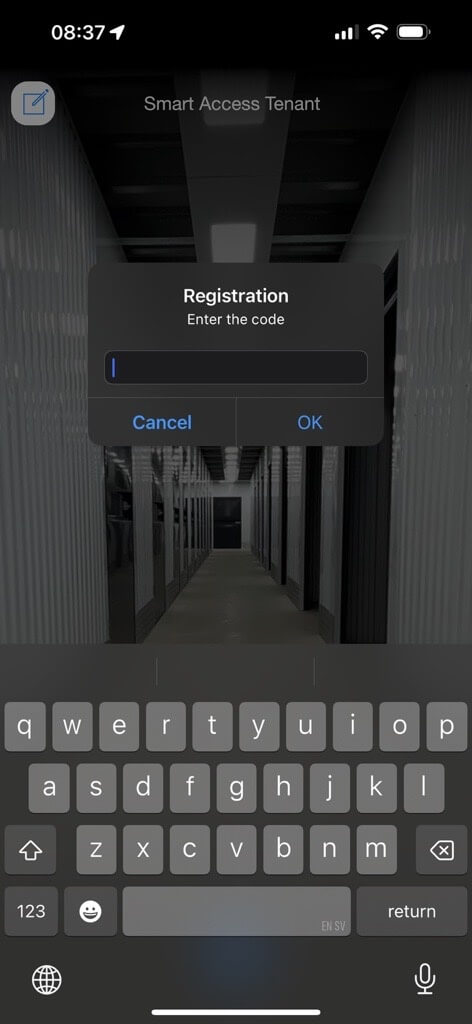
Once the app has been installed, open it and tap the green “+” symbol at the bottom of the screen. Enter the activation code you received by email or text message in the designated field.

Please note that the activation code is single-use and location-specific. If you have a storage unit at more than one Pelican location, you must request a separate activation code from each location.


2: Please note that the activation code is valid for three days only. Even if your rental agreement starts at a later date, you should activate the app as soon as you receive the code.

Tap the name of your Pelican location. The app will then ask you to authenticate using your phone’s security method.

Depending on your device, this may be a PIN code, fingerprint recognition, or facial recognition.

Note: If your phone uses a code shorter than six digits, or if your phone does not have a biometric authentication method enabled, you will need to create a separate six-digit PIN for the app.

Allow the app to access your phone’s location while using the app.

3: You have now successfully installed and activated the Pelican Smart Access app.

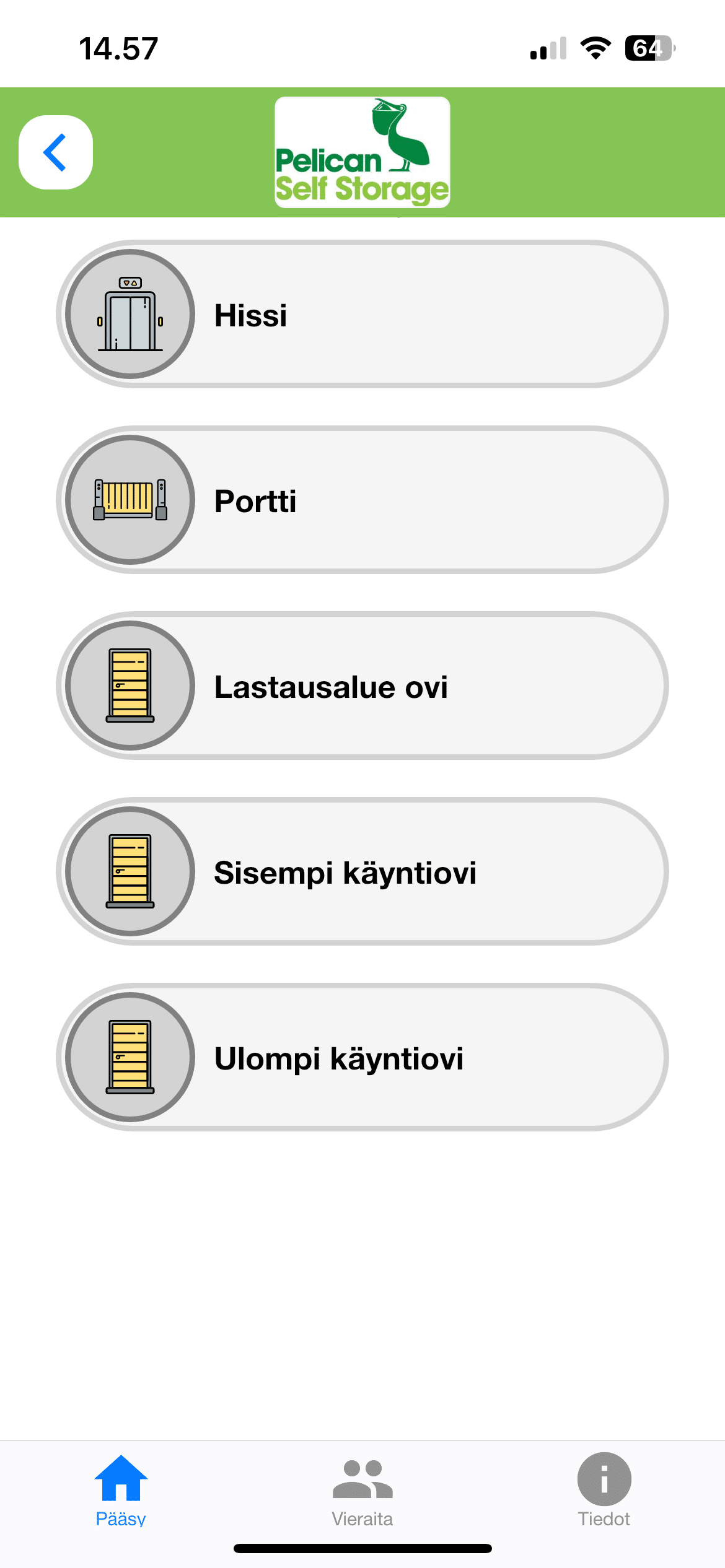
You can open doors, gates, and elevators by sliding the access icon from the left side to the right side of the screen. The doors at your Pelican location are marked with identifiers such as Door 1, Door 2, Door 3, and so on.

You can grant one-day access to a guest through the “Guests” link located at the bottom of the app. If you would like to provide ongoing access to another person, please contact our customer service.