Pelican Smart Access
app
1. Download the app
Download the Pelican Smart Access app to your phone from either the Apple App Store or Google Play.
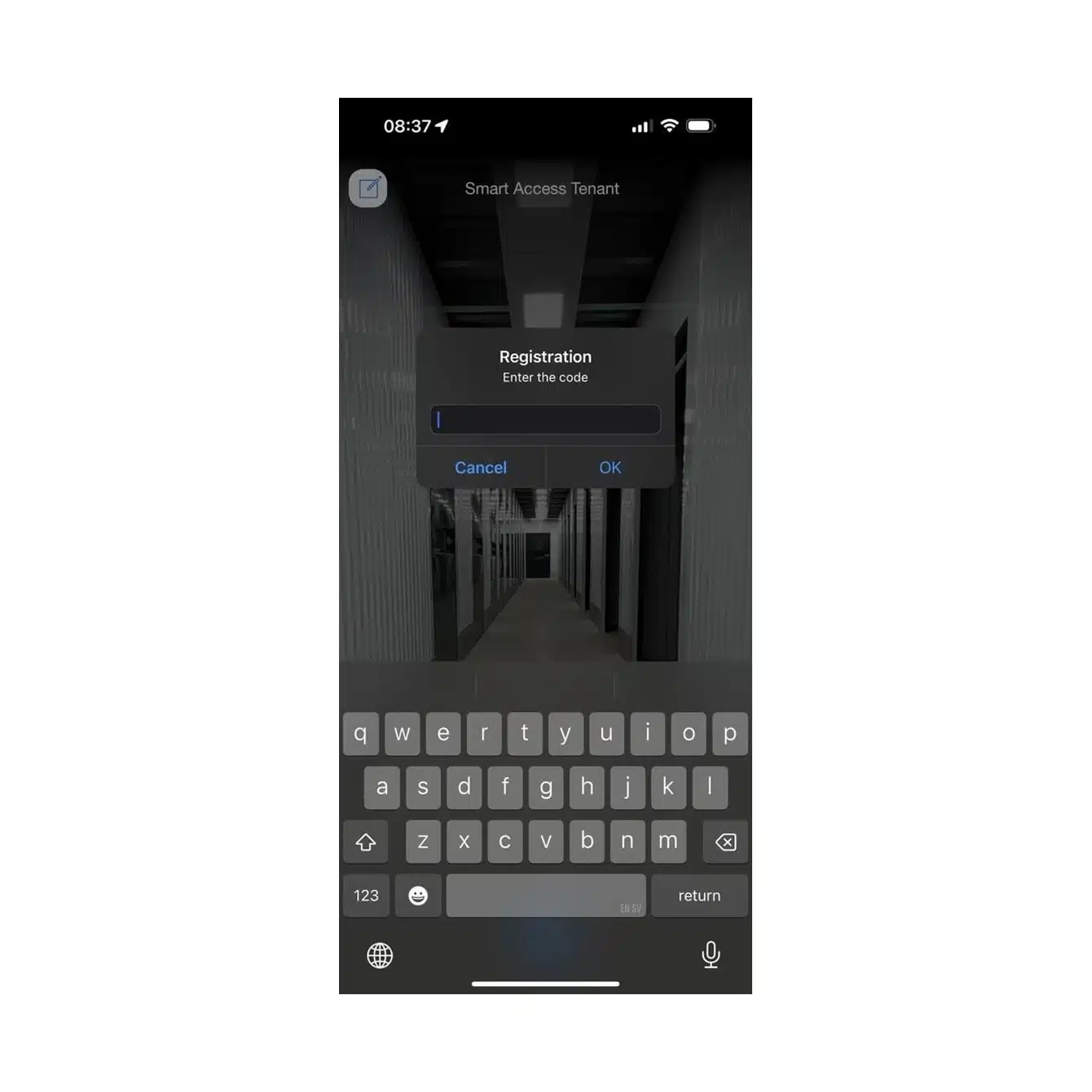
Once the app has downloaded, open it and press the green “+“ symbol at the bottom of the screen and enter the activation code you received via email/SMS.
The activation code is for one-time use and is location-specific. If you have storage at multiple Pelican locations, you must request an activation code from each location separately.
2. Activate your access
Please note that the code you received is only valid for three days, so even if your contract starts later, the app should be set up as soon as you receive the code.
Press the name of your Pelican location, after which the app will ask for an access code/biometric identifier.
Depending on your phone, this could be an access code, fingerprint, or face ID.
Note: If you use a code with fewer than six digits or if your phone does not have an identifier to open it, you will need to create your own code for the app (6 digits).
Grant the app permission to use your phone’s location while using the app.
If you encounter any problems during setup, please contact our customer service at 0207 007 700

3. The Pelican Smart Access app is now ready to use.
You have now successfully downloaded the Pelican Smart Access app.
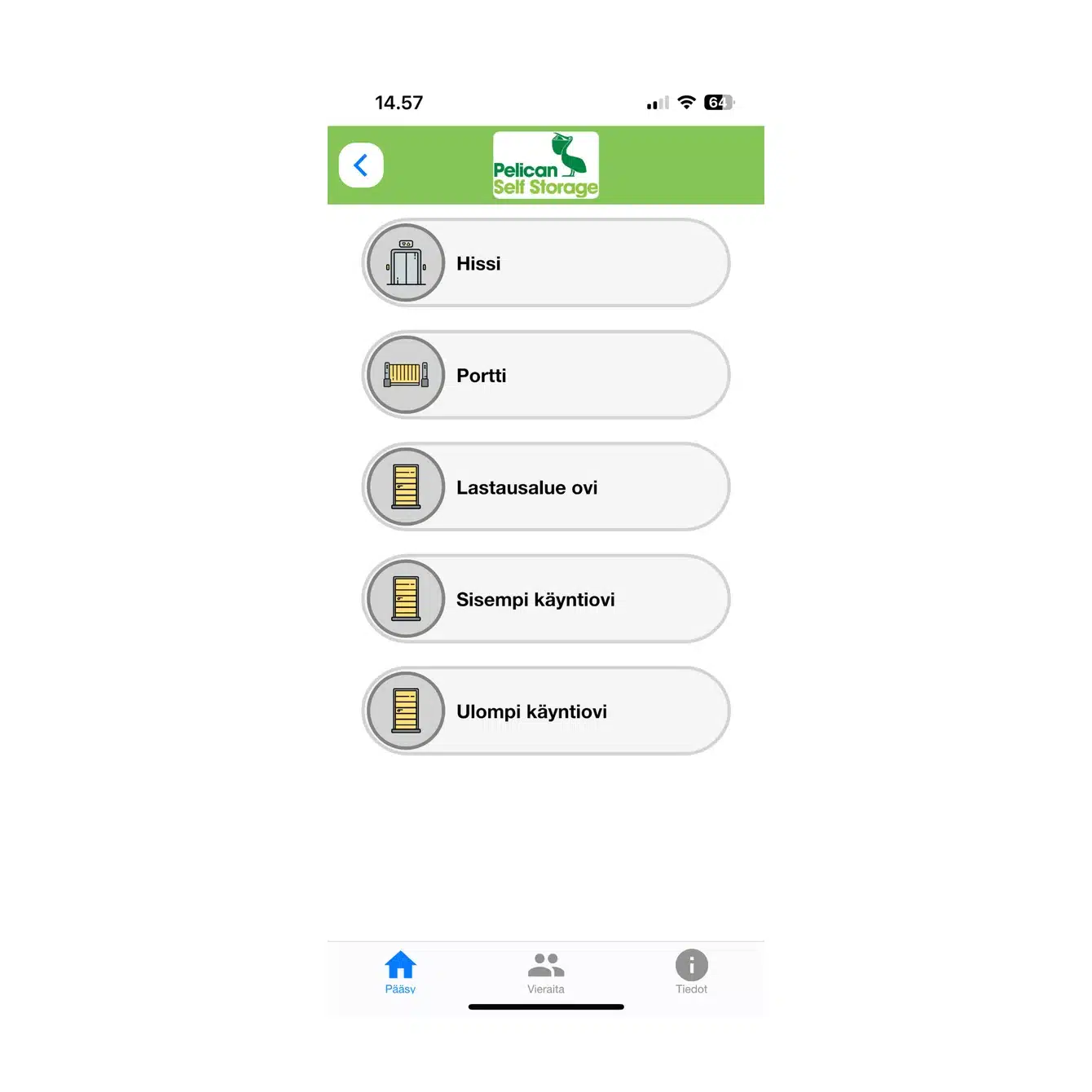
You can now open doors, gates, and elevators by sliding the symbol from the left to the right. The doors at your Pelican location are marked as door 1, 2, 3, etc.
Through the “guests” link at the bottom, you can share access with a person of your choice for one day. If you want to grant continuous access to another person, please contact our customer service.